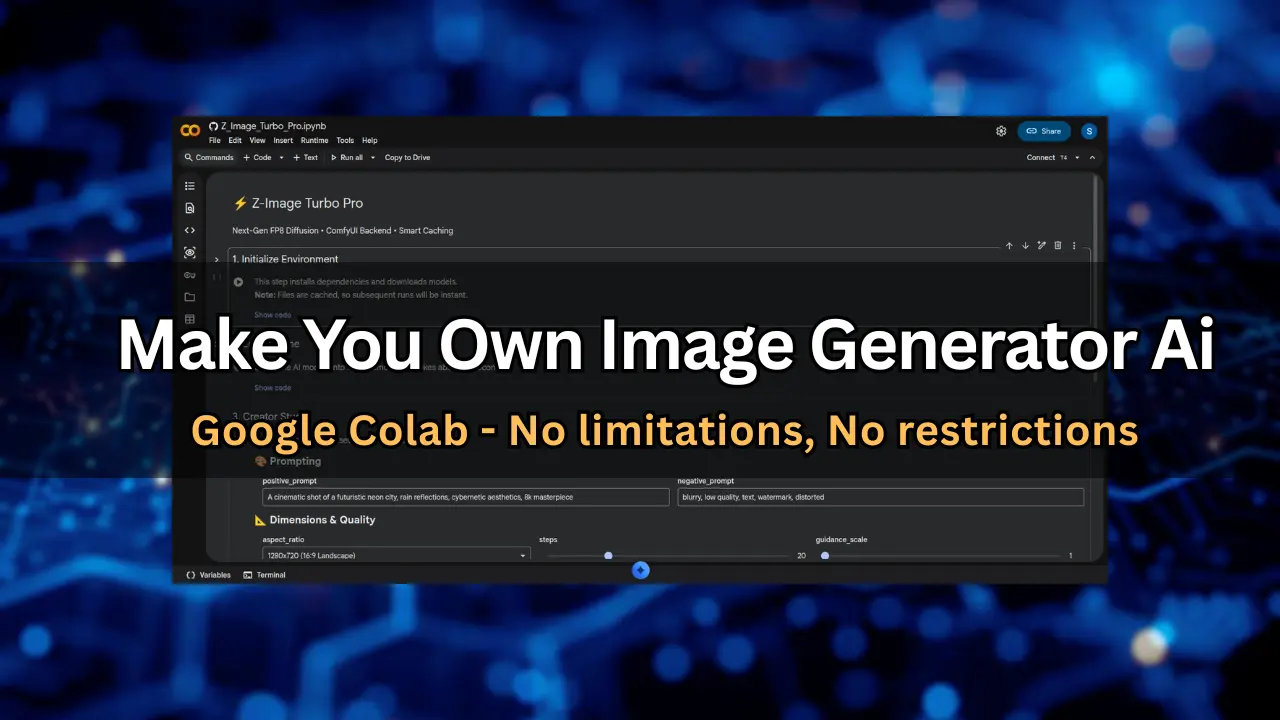
Want to generate realistic AI images without any restrictions? Here is how you can create an AI image generator tool in 5 minutes without paying a single penny. Here we will use the Next-Gen FP8 Diffusion Model or you can call it Z-Image Turbo Pro. It’s completely open source and by using it you can generate anything… literally anything, no one will restrict you.
What will you need?
- A Google account.
- A stable internet connection.
- And a basic web browser.
Why are we using Google Colab?
You don’t need to buy any powerful system with expensive GPUs. For using this kind of AI model, you really need a very high-performing GPU.
And Google Colab gives you the access to their T4 GPU even with the free plan, so you don’t need any. This makes Colab a perfect option… but if you have a good system with a high performance graphic card, then you can also do this process on your local computer, it’s up to you.
Step 1: Open the Google Colab URL
Open this Google Colab url: Z-Image Turbo Pro
And make sure that you are signed in with your Google account.
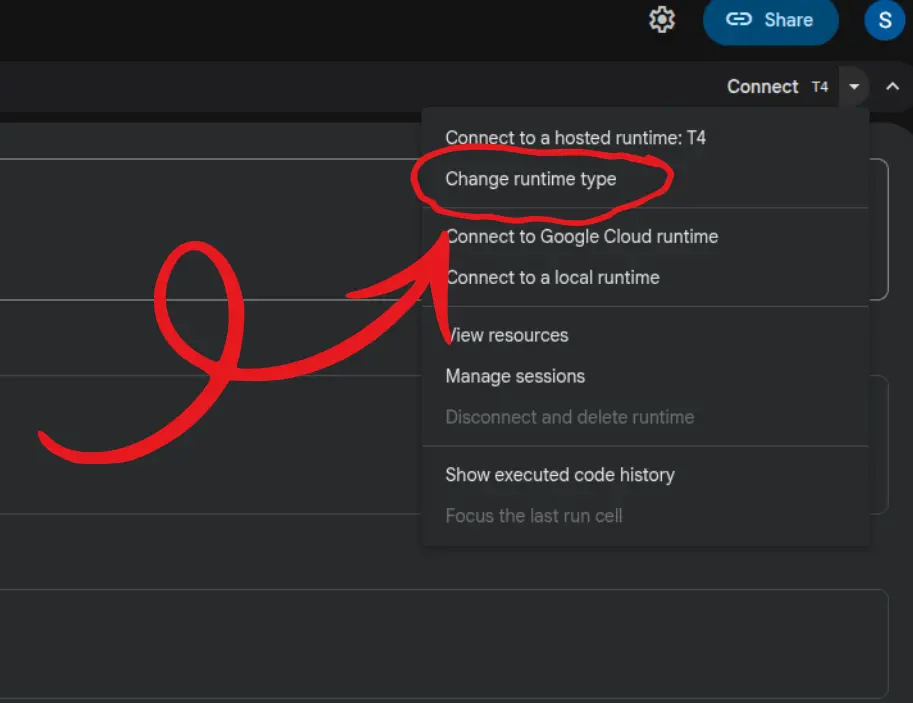 Now go to the right top corner Runtime menu and click “Change runtime type”.
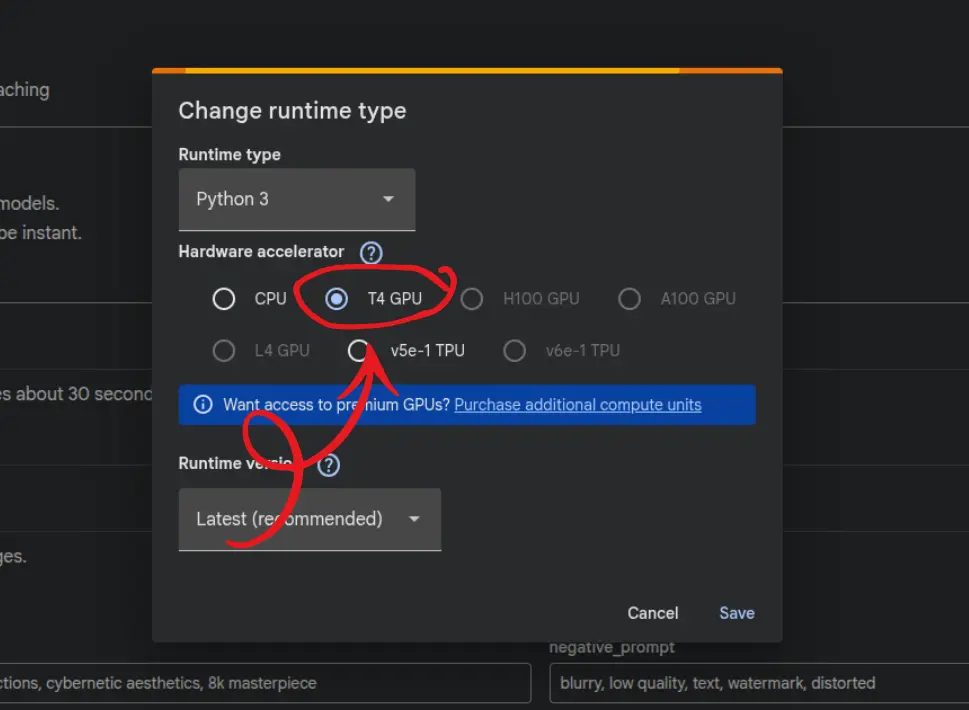 Under Hardware accelerator, select T4 GPU (it is available on the free tier) and then click “Save”
This will take some time (5 to 10 seconds) to connect.
Step 2: Initialize Environment
Now come to the first column, “Initialize Environment” and run the cell. This step will clone the git repo, install all the necessary Python dependencies, and download models (it takes around 1-2 minutes).
Step 3: Load the Engine
Now come to the second column “Load Engine” and run the cell. This step loads the AI models into GPU memory. It takes about 30 sec to 1 minute.
Step 4: Enter your Prompt and Settings to Generate Images
And finally, the final and most important step, give your image generation prompt and adjust the settings.
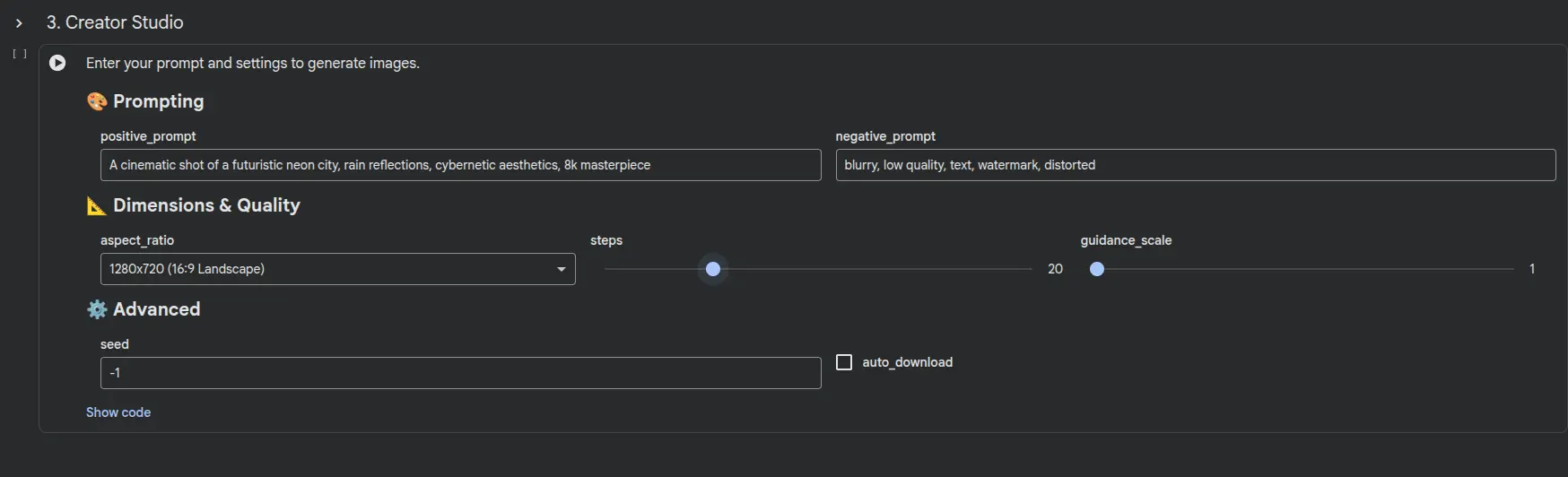 In the positive prompt input field, write the prompt of your image, and in the negative prompt input field, name the things which you don’t want to get added to your image.
After that, select the aspect ratio, steps, and gradient. The higher the no. of steps, the more detailed the image will be and the more time it will also take.
Select the check box auto_download if you want to download the image automatically after generating.
Now enjoy! And generate the number of images you want to generate. After generating, you will see all of the generated images are stored in the results folder.